 Oracle Solutions We believe in delivering tangible results for our customers in a cost-effective manner
A Practical Implementation Guide with User Registration, QR Code Enrollment, OTP Verification, and Custom Authentication
Author: Zulqarnain Haider
Application Name: Two-Factor Authentication Demo
Oracle APEX Export Release: 26.2.1
Technology: Oracle APEX, Oracle Database, SQL, PL/SQL, JavaScript
Authentication Standard: Time-Based One-Time Password (TOTP)
Supporting Library: OraOpenSource oos-utils
JavaScript Library: QRCode.js
1. Introduction
Application security is one of the most important aspects of enterprise application development. Traditional username and password authentication provides the first layer of protection, but additional security is often required to protect sensitive application data.
Two-Factor Authentication (2FA) provides an additional layer of security by requiring users to verify their identity using a second authentication factor.
In this project, I implemented a Two-Factor Authentication solution in Oracle APEX using Time-Based One-Time Password (TOTP).
The application allows users to register, configure an authenticator application by scanning a QR code, enable Two-Factor Authentication, and verify OTP codes during login.
The implementation combines Oracle APEX page components, PL/SQL packages, JavaScript Dynamic Actions, and the OraOpenSource oos-utils library.
This article explains the actual application structure and implementation flow, including the page names, page items, regions, buttons, processes, validations, and authentication configuration used in the project.
2. Understanding Two-Factor Authentication
Two-Factor Authentication is a security mechanism that requires users to provide two different forms of verification before accessing an application.
The two factors in this implementation are:
-
Username and Password: The user’s primary login credentials.
-
Time-Based One-Time Password: A temporary verification code generated by an authenticator application.
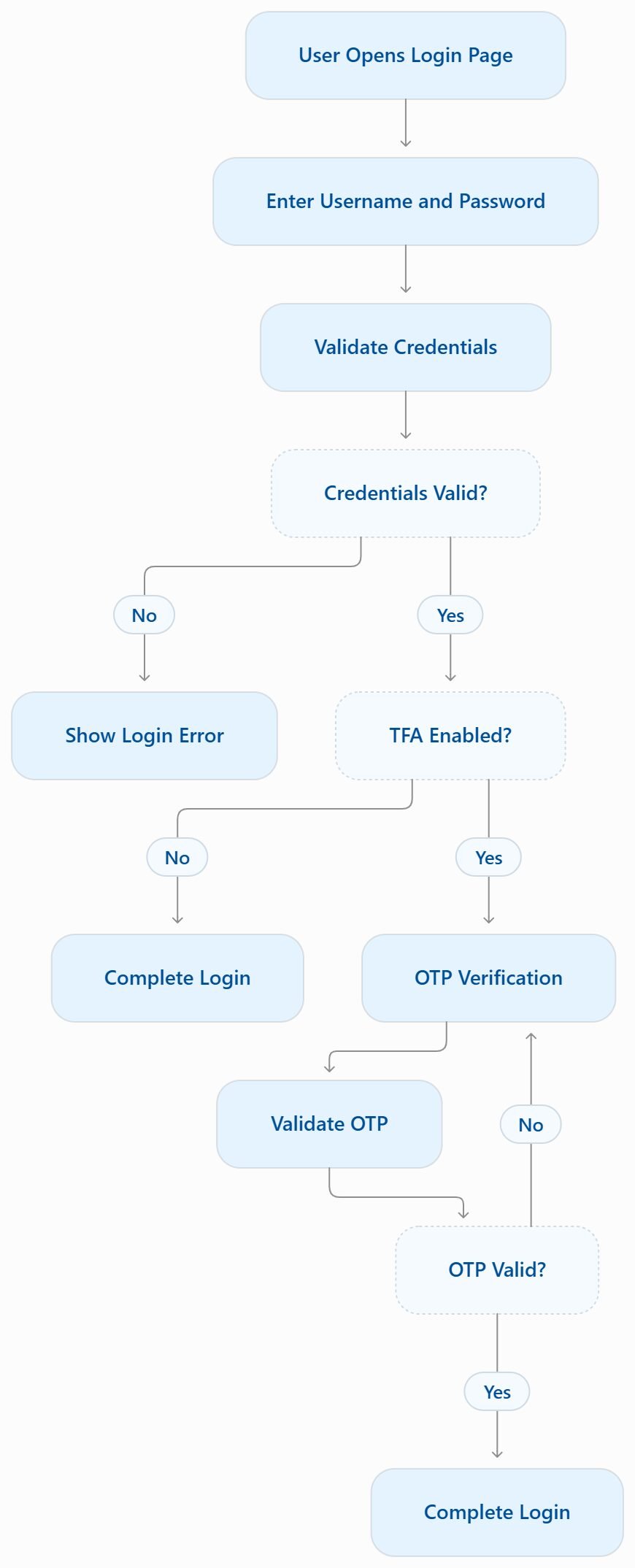
After entering valid login credentials, users who have enabled 2FA must complete the additional OTP verification step.
This helps improve account security by requiring possession of the authenticator device in addition to knowledge of the password.
3. Understanding TOTP
TOTP stands for Time-Based One-Time Password.
It is an authentication mechanism that generates temporary verification codes using a shared secret and the current time.
The authenticator application and the server use the same shared secret to independently generate matching codes.
Common authenticator applications include:
-
Google Authenticator
-
Microsoft Authenticator
-
Duo Mobile
The general process is:
-
Generate a shared secret for the user.
-
Create a TOTP provisioning URI.
-
Convert the URI into a QR code.
-
Scan the QR code using an authenticator application.
-
Generate a time-based verification code.
-
Validate the submitted code on the server.
TOTP is standardized in RFC 6238.
4. Project Overview
The application is named Two-Factor Authentication Demo.
The original Oracle APEX export identifies the following application structure:
| Component | Count |
|---|---|
| Application Pages | 7 |
| Page Items | 14 |
| Validations | 4 |
| Processes | 11 |
| Regions | 11 |
| Buttons | 8 |
| Dynamic Actions | 4 |
| Authentication Schemes | 2 |
| Authorization Schemes | 1 |
The application contains the following main pages:
| Page ID | Page Name | Purpose |
|---|---|---|
| 1 | Home | Application home page |
| 2 | Register | User registration |
| 10 | My Account | Account security settings |
| 11 | Code Verification | QR enrollment and OTP verification |
| 9999 | Login Page | Username and password login |
| 10000 | OTP Required | Additional login verification |
The export also contains Page 0, named Global Page – Desktop.
These pages work together to implement the complete Two-Factor Authentication workflow.
5. Application Architecture and Authentication Flow
The application follows a sequence of authentication and verification steps.
Overall workflow:
-
A user opens the application.
-
The user registers an account through Page 2.
-
The user logs in through Page 9999.
-
The user opens My Account (Page 10).
-
The user enables Two-Factor Authentication.
-
The application opens Code Verification (Page 11).
-
The application generates a TOTP provisioning URI.
-
JavaScript converts the URI into a QR code.
-
The user scans the QR code using an authenticator application.
-
The user enters the verification code.
-
The application validates the OTP.
-
The user’s 2FA status is enabled.
-
During subsequent login attempts, the application requires OTP verification when 2FA is enabled.
The application uses PL/SQL for backend processing and JavaScript for QR code generation.
6. User Registration – Page 2
The registration functionality is implemented on Page 2 – Register.
The page contains a region named:
User Registration
The region provides the interface for entering the user’s account information.
Page Items
| Page Item | Prompt | Display Type |
|---|---|---|
| P2_USERNAME | Username | Text Field |
| P2_PASSWORD | Password | Password |
| P2_CONFIRM_PASSWORD | Confirm Password | Password |
Register Button
| Property | Value |
|---|---|
| Button Name | REGISTER |
| Static ID | register |
| Action | Submit |
| Position | Create |
Validations
Two validations are configured on the registration page.
1. uniqueUsername
This validation checks whether the username already exists in the TFA_USER table.
select null
from tfa_user
where lower(username) = lower(:P2_USERNAME)
Validation Type: NOT EXISTS
Error Message:
Invalid username
2. passwordsMatch
This validation checks whether the password and confirmation password match.
:P2_PASSWORD = :P2_CONFIRM_PASSWORDValidation Type: PL/SQL Expression
Error Message:
Passwords do not match
Registration Process
The application uses an After Submit PL/SQL process named:
createUser
The process calls the following procedure:
pkg_tfa_apex.p_register_user(
    p_username        => :P2_USERNAME,
    p_password        => :P2_PASSWORD,
    p_confirm_password => :P2_CONFIRM_PASSWORD
);
On successful registration, the application displays:
User account created.
The registration process then redirects the user to Page 1.
7. My Account – Page 10
The My Account page allows authenticated users to manage their account security settings.
The page contains a region named:
My Account
It provides the user’s account information and Two-Factor Authentication status.
Page Items
| Page Item | Prompt | Display Type |
|---|---|---|
| P10_USERID | User ID | Hidden |
| P10_USERNAME | Username | Display Only |
| P10_TFA_ENABLED | Two-Factor Authentication Enabled | Yes/No |
Save Button
| Property | Value |
|---|---|
| Button Name | SAVE |
| Static ID | save |
| Action | Defined by Dynamic Action |
| Label | Save Changes |
Load Data Process
A Before Header process named loadData retrieves the current user’s information from the TFA_USER table.
begin
    select userid,
           username,
           tfa_enabled
    into   :P10_USERID,
           :P10_USERNAME,
           :P10_TFA_ENABLED
    from   tfa_user
    where  lower(username) = lower(:APP_USER);

exception
    when no_data_found then
        null;
end;
This process loads the user’s ID, username, and current 2FA status into the corresponding page items.
Save Changes Process
The After Submit process named saveChanges updates the user’s 2FA status.
update tfa_user
set    tfa_enabled = :P10_TFA_ENABLED
where  userid = :P10_USERID;
The success message is:
Changes saved successfully.
Dynamic Action – determineSavePath
A Dynamic Action named determineSavePath is configured on the SAVE button.
Its purpose is to determine the next action based on the value of P10_TFA_ENABLED.
Condition:
P10_TFA_ENABLED = 1The Dynamic Action contains two actions:
True Action
-
Action: Submit Page
-
Request: VERIFY
This redirects the workflow toward Page 11 for authenticator enrollment and verification.
False Action
-
Action: Submit Page
-
Request: SAVE
This saves the updated 2FA setting directly.
This approach separates the enablement flow from the normal save operation.
8. Code Verification and QR Enrollment – Page 11
The Code Verification page is implemented as a modal dialog.
It is responsible for displaying the QR code and verifying the user’s authenticator code during enrollment.
Page Regions
The page contains three regions:
| Region Name | Static ID | Purpose |
|---|---|---|
| Buttons Container | buttons-container | Contains action buttons |
| Code Verification | code-verification | Contains OTP input |
| Instructions | instructions | Displays QR code and instructions |
The Instructions region includes a QR code container:
<div id="qrcode" style="text-align:center;"></div>It also displays the following instructions:
-
Scan the QR Code using an authenticator application, such as Google Authenticator or Duo Mobile.
-
Enter the generated code and click Verify to complete activation.
Page Items
| Page Item | Display Type | Purpose |
|---|---|---|
| P11_OTP | Number Field | Verification code |
| P11_OTP_URI | Hidden | TOTP provisioning URI |
| P11_USERID | Hidden | User ID |
The P11_OTP item is configured with a six-character maximum length.
Page Buttons
| Button Name | Static ID | Action |
|---|---|---|
| VERIFY | verify | Submit |
| CANCEL | cancel | Defined by Dynamic Action |
Generating the TOTP Provisioning URI
A Before Header process named loadData generates the provisioning URI.
The process uses:
OOS_UTIL_TOTP.FORMAT_KEY_URI
The actual SQL from the application export is:
select
    oos_util_totp.format_key_uri(
        p_label_accountname => :APP_TITLE || ' - ' || lower(username),
        p_label_issuer      => :APP_TITLE,
        p_secret            => shared_secret
    )
into :P11_OTP_URI
from tfa_user
where userid = :P11_USERID;
The generated URI contains the information needed by the authenticator application to configure the TOTP account.
QR Code Generation Using JavaScript
The application includes the JavaScript file:
js/qrcode.js
It is configured at page level using:
#APP_IMAGES#js/qrcode.jsA Dynamic Action named onPageLoad executes when the page is ready.
The JavaScript code configured in the Dynamic Action is:
var qr = qrcode(0, 'M');

qr.addData(apex.item('P11_OTP_URI').getValue());

qr.make();

this.affectedElements.append(
    qr.createImgTag(4, 16, 'OTP URI')
);
The code performs the following operations:
-
Creates a QR code object.
-
Reads the provisioning URI from
P11_OTP_URI. -
Adds the URI to the QR code.
-
Generates the QR code.
-
Displays the generated QR code inside the
div#qrcodecontainer.
This provides an easy enrollment process without requiring users to manually enter the TOTP secret.
OTP Validation
The page contains a validation named:
validateOTP
It uses the following PL/SQL expression:
pkg_tfa_apex.f_validate_otp(
    p_userid => :P11_USERID,
    p_otp    => :P11_OTP
)
The validation runs when the VERIFY button is submitted.
If the code does not match, the application displays:
Verification code does not match. Please try again.
Enabling Two-Factor Authentication
After successful verification, the After Submit process named saveChanges updates the user’s 2FA status.
update tfa_user
set    tfa_enabled = 1
where  userid = :P11_USERID;
On success, the application displays:
Changes saved successfully. Two-factor Authentication protection enabled!
The application then redirects the user to Page 10 – My Account.
9. Login Page – Page 9999
The Login Page is the entry point for users who want to access the application.
It contains the standard login interface with additional custom authentication processing.
Page Regions
| Region Name | Purpose |
|---|---|
| &APP_TITLE. | Application login container |
| Language Selector | Language selection |
Page Items
| Page Item | Prompt | Display Type |
|---|---|---|
| P9999_USERNAME | username | Text Field |
| P9999_PASSWORD | password | Password |
| P9999_REMEMBER | Remember username | Checkbox |
Login Button
| Property | Value |
|---|---|
| Button Name | LOGIN |
| Static ID | login |
| Action | Submit |
| Label | Sign In |
Get Username Cookie Process
A Before Header process named:
Get Username Cookie
retrieves the saved username.
:P9999_USERNAME :=
    apex_authentication.get_login_username_cookie;

:P9999_REMEMBER :=
    case
        when :P9999_USERNAME is not null then 'Y'
    end;
This supports the Remember Username functionality.
Custom Login Process
The After Submit process is named:
Login
It calls the custom authentication procedure:
pkg_tfa_apex.p_authenticate_user(
    p_username => :P9999_USERNAME,
    p_password => :P9999_PASSWORD
);
The application export also contains a commented-out call to the standard APEX_AUTHENTICATION.LOGIN procedure.
The active custom login processing uses PKG_TFA_APEX.P_AUTHENTICATE_USER.
Set Username Cookie Process
Another process named:
Set Username Cookie
uses the following code:
apex_authentication.send_login_username_cookie (
    p_username => lower(:P9999_USERNAME),
    p_consent  => :P9999_REMEMBER = 'Y'
);
This saves the username when the user selects Remember Username.
Login Branch
After login processing, the application contains a branch named:
goToPage10000
It redirects to Page 10000 and passes the username into:
P10000_USERNAME
This supports the additional OTP verification step.
10. OTP Required – Page 10000
The OTP Required page is displayed as a modal dialog.
It is used during login when the user must complete additional OTP verification.
Page Regions
| Region Name | Static ID |
|---|---|
| Buttons | buttons |
| Verification Code | verification-code |
Page Items
| Page Item | Prompt | Display Type |
|---|---|---|
| P10000_OTP | Please enter the verification code from your security application | Number Field |
| P10000_USERNAME | Not displayed | Hidden |
The OTP item is configured as a required field with a maximum length of six characters.
Page Buttons
| Button Name | Static ID | Action |
|---|---|---|
| VERIFY | verify | Submit |
| CANCEL | cancel | Defined by Dynamic Action |
OTP Validation
A validation named validateOTP verifies the submitted code.
The application uses:
pkg_tfa_apex.f_validate_otp(
    p_username => :P10000_USERNAME,
    p_otp      => :P10000_OTP
)
If the verification code does not match, the application displays:
Verification code does not match. Please try again.
Final Login Process
After successful OTP verification, the application executes the process named:
finalizeLogin
The process calls:
apex_authentication.post_login(
    p_username => :P10000_USERNAME,
    p_password => null
);
This completes the post-login processing after the additional verification step.
Session State Cleanup
The page also contains a process named:
clearSessionState
It clears the cache for Pages 9999 and 10000.
This helps clean up the login and OTP page session state during the configured processing flow.
11. Custom Authentication Scheme
The application uses a custom authentication scheme named:
TFA Authentication
The authentication type is:
NATIVE_CUSTOM
The configured authentication function is:
PKG_TFA_APEX.F_AUTHENTICATE_USER
This function is responsible for the custom authentication integration.
The login page also invokes:
PKG_TFA_APEX.P_AUTHENTICATE_USER
Together, these components connect the application’s custom authentication logic with its Two-Factor Authentication workflow.
12. PL/SQL Packages and Functions
The implementation references the following backend routines:
| Package / Function | Usage |
|---|---|
PKG_TFA_APEX.P_REGISTER_USER |
Registers a user |
PKG_TFA_APEX.P_AUTHENTICATE_USER |
Processes user authentication |
PKG_TFA_APEX.F_AUTHENTICATE_USER |
Custom authentication function |
PKG_TFA_APEX.F_VALIDATE_OTP |
Validates the OTP |
OOS_UTIL_TOTP.FORMAT_KEY_URI |
Generates the TOTP provisioning URI |
These routines form the backend foundation of the authentication workflow.
The application export contains references to these routines, but it does not provide the complete package specification and package body implementation. Therefore, their internal algorithms are not reproduced here.
13. Dynamic Actions Used in the Application
The application export contains four Dynamic Action events.
| Page | Dynamic Action | Purpose |
|---|---|---|
| Page 10 | determineSavePath | Determines whether to save directly or start 2FA verification |
| Page 11 | cancelDialog | Cancels the modal dialog |
| Page 11 | onPageLoad | Generates and displays the QR code |
| Page 10000 | cancelDialog | Cancels the OTP modal dialog |
Important JavaScript Dynamic Action
The onPageLoad Dynamic Action on Page 11 uses the QRCode.js library to generate the QR code from P11_OTP_URI.
This is the main client-side component of the enrollment process.
14. Database Objects and Application Data
The application references the following database table:
TFA_USER
The export confirms the use of these columns:
| Column | Usage |
|---|---|
| USERID | Identifies the user |
| USERNAME | Stores the username |
| TFA_ENABLED | Stores the 2FA status |
| SHARED_SECRET | Used to generate the TOTP provisioning URI |
The application reads user information, generates the provisioning URI, and updates the Two-Factor Authentication status through this table.
The complete table DDL is not included in the application page definitions discussed here, so additional column definitions and constraints should be verified from the database schema before publishing them.
15. Technologies and Libraries Used
| Technology | Purpose |
|---|---|
| Oracle APEX | Application development |
| Oracle Database | User data and authentication support |
| SQL | Data retrieval and updates |
| PL/SQL | Registration and authentication processing |
| JavaScript | Client-side QR generation |
| QRCode.js | QR code creation |
| OraOpenSource oos-utils | TOTP provisioning URI functionality |
| Google Authenticator / Duo Mobile | Authenticator enrollment and OTP generation |
The integration of these technologies provides a practical approach to adding Two-Factor Authentication to an Oracle APEX application.
16. Security Considerations and Best Practices
Two-Factor Authentication should be implemented with security as a primary consideration.
Important recommendations include:
1. Protect Shared Secrets
The TOTP shared secret must be protected and should not be exposed in URLs, logs, screenshots, or public repositories.
2. Use HTTPS
Use HTTPS to protect credentials and authentication information during transmission.
3. Perform Server-Side OTP Validation
OTP validation should be performed on the server side using the PL/SQL validation routine.
4. Limit Verification Attempts
Implement appropriate rate limiting and account protection controls to reduce brute-force attempts.
5. Protect Enrollment
Only the authenticated account owner should be able to access their QR enrollment information.
6. Secure Authentication Sessions
Ensure users cannot access protected application functionality before completing the required authentication steps.
7. Protect Database Access
Restrict access to the TOTP secret and authentication-related database objects.
17. Testing Scenarios and Implementation Results
The following scenarios can be used to test the application’s functionality.
| Test Scenario | Expected Result |
|---|---|
| Register a new user | User account is created |
| Register an existing username | Validation rejects duplicate username |
| Enter different passwords | Password confirmation validation fails |
| Open My Account | User security information is loaded |
| Enable 2FA | Application opens Code Verification |
| Generate provisioning URI | TOTP URI is assigned to P11_OTP_URI |
| Display QR code | QR code appears on Page 11 |
| Scan QR code | Authenticator account is configured |
| Enter valid enrollment OTP | 2FA status is enabled |
| Enter invalid OTP | Verification is rejected |
| Login with 2FA enabled | Additional OTP verification is required |
| Complete OTP verification | Post-login processing is executed |
These scenarios cover the main functions implemented in the application.
18. Conclusion
In this project, I implemented a Two-Factor Authentication demonstration application using Oracle APEX, PL/SQL, JavaScript, and the OraOpenSource oos-utils library.
The application demonstrates how user registration, TOTP provisioning, QR code enrollment, OTP validation, and custom authentication can be integrated into an Oracle APEX application.
By combining Oracle APEX page components with backend PL/SQL routines and JavaScript functionality, the implementation provides a practical example of adding an additional authentication layer to an application.
This project also demonstrates how Oracle APEX can be extended beyond standard login functionality to support customized security workflows.