 Oracle Solutions We believe in delivering tangible results for our customers in a cost-effective manner
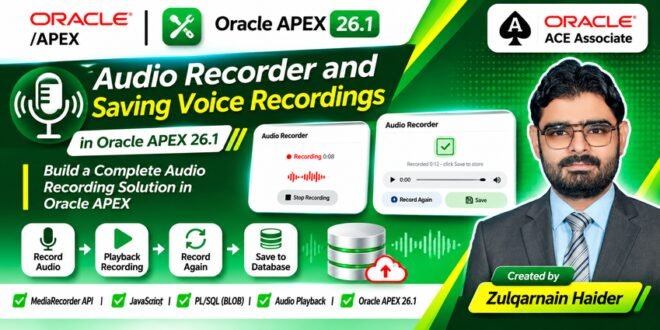
Browser-Based Audio Recording, Playback, and BLOB Storage Using JavaScript and PL/SQL
Author: Zulqarnain Haider
Technology: Oracle APEX 26.1, Oracle Database, JavaScript, HTML, CSS, PL/SQL
1. Introduction
Audio recording is a useful feature in many business applications. Organizations may need to record voice notes, customer feedback, meeting discussions, employee comments, or other audio information and store it directly in a database.
Oracle APEX provides a flexible environment for building such functionality by combining its native page components with JavaScript and PL/SQL.
In this article, I will demonstrate how to develop a browser-based Audio Recorder in Oracle APEX. The application allows users to record audio through their device microphone, stop the recording, listen to the recorded audio, record again if required, and save the final recording into an Oracle Database table as a BLOB.
The implementation uses the browser’s MediaRecorder API for capturing audio and Oracle APEX page items to transfer the recorded data to the server. PL/SQL then converts the Base64 content into binary data and stores it in the database.
2. Project Overview
The Audio Recorder application provides a simple and interactive interface for capturing and saving voice recordings.
Main features:
-
Start audio recording through the browser microphone.
-
Stop an active recording.
-
Display recording duration.
-
Show an animated recording indicator and waveform.
-
Play back recorded audio before saving.
-
Record audio again when required.
-
Generate a recording filename automatically.
-
Transfer audio data to Oracle APEX through hidden page items.
-
Convert Base64 data into a BLOB using PL/SQL.
-
Store audio recordings in an Oracle Database table.
3. Application Architecture
The application uses a combination of client-side and server-side technologies.
| Technology | Purpose |
|---|---|
| Oracle APEX | Application interface and page processing |
| HTML | Audio recorder interface |
| CSS | Recorder styling and animated waveform |
| JavaScript | Microphone access and recording controls |
| MediaRecorder API | Captures browser audio |
| FileReader API | Converts recorded audio into Base64 |
| APEX Page Items | Transfers audio data to server-side processing |
| PL/SQL | Decodes Base64 and inserts audio into database |
| BLOB | Stores binary audio content |
The implementation is developed on Page 5 of the exported application.
4. Understanding the Audio Recording Process
The browser provides the MediaRecorder API, which allows web applications to capture audio from a microphone.
The application uses the following browser APIs:
-
navigator.mediaDevices.getUserMedia()to request microphone access. -
MediaRecorderto start and stop recording. -
Blobto combine recorded audio chunks. -
FileReaderto convert the audio Blob into Base64 data. -
URL.createObjectURL()to provide audio playback in the browser.
This approach allows the application to capture audio without requiring a separate desktop recording application.
5. Creating the Database Table
The recorded audio must be stored in an Oracle Database table.
The application process inserts three values:
-
Filename
-
MIME type
-
Audio BLOB
The following is a sample table structure for this implementation. The table DDL is not included in the supplied Page 5 export.
SQL – Create Audio Recordings Table
CREATE TABLE AUDIO_RECORDINGS (
    AUDIO_ID    NUMBER GENERATED BY DEFAULT AS IDENTITY
                PRIMARY KEY,
    FILENAME    VARCHAR2(255),
    MIME_TYPE   VARCHAR2(100),
    AUDIO_BLOB  BLOB,
    CREATED_ON  TIMESTAMP DEFAULT SYSTIMESTAMP
);
The AUDIO_BLOB column stores the actual binary audio content, while the filename and MIME type identify the stored recording.
6. Creating the Audio Recorder Interface
The application uses a Dynamic Content region with custom HTML and CSS.
The recorder interface contains three different states:
Idle State
Displays the Start Recording button before recording begins.
Recording State
Displays a recording indicator, timer, animated waveform, and Stop Recording button.
Completed State
Displays an audio player, Record Again button, and Save button.
The application switches between these states using JavaScript.
The following HTML demonstrates the main recorder interface:
<div id="idlePanel">
    <h3>Audio Recorder</h3>
    <p id="idleMsg">
        Click start to begin recording
    </p>
    <button type="button" id="startBtn">
        Start Recording
    </button>
</div>

<div id="recordingPanel" style="display:none;">
    <span>Recording</span>
    <span id="recTimer">0:00</span>

    <div class="waveform">
        <div class="wave-bar"></div>
        <div class="wave-bar"></div>
        <div class="wave-bar"></div>
        <div class="wave-bar"></div>
        <div class="wave-bar"></div>
    </div>

    <button type="button" id="stopBtn">
        Stop Recording
    </button>
</div>

<div id="donePanel" style="display:none;">
    <p id="doneMsg">Ready to save</p>

    <audio id="audioPlayback" controls></audio>

    <button type="button" id="reRecordBtn">
        Record Again
    </button>

    <button type="button" id="SAVE_AUDIO">
        Save
    </button>
</div>
The actual application export includes additional styling, icons, animations, and responsive layout for these sections.
7. Styling the Audio Recorder with CSS
CSS is used to create an interactive recording experience.
The application uses animations for the recording indicator and waveform bars.
CSS Code:
@keyframes pulse {
    0%, 100% {
        transform: scale(1);
        opacity: 1;
    }

    50% {
        transform: scale(1.15);
        opacity: 0.7;
    }
}

@keyframes bar {
    0%, 100% {
        height: 4px;
    }

    50% {
        height: var(--h);
    }
}

.rec-dot {
    animation: pulse 1.2s ease-in-out infinite;
}

.wave-bar {
    animation: bar 0.6s ease-in-out infinite;
    background: #E24B4A;
    border-radius: 2px;
    width: 4px;
}
Different animation delays and heights can be applied to individual waveform bars to create a moving audio visualization.
8. Creating Hidden Page Items in Oracle APEX
Two hidden page items are used to transfer the recorded audio information.
| Page Item | Purpose |
|---|---|
P5_AUDIO_DATA |
Stores Base64 audio content |
P5_FILENAME |
Stores the generated audio filename |
Both items are configured as Hidden items on Page 5.
The application uses these items to pass the recording data from JavaScript to the server-side PL/SQL process.
9. JavaScript Implementation – Starting Audio Recording
The application initializes the MediaRecorder and audio chunk variables in the Page JavaScript section.
var mediaRecorder;
var audioChunks = [];
var isRecording = false;

var recTimerInterval;
var elapsedSeconds = 0;
When the user clicks Start Recording, the application requests microphone access.
Start Recording Code:
document.getElementById('startBtn')
.addEventListener('click', function () {

    if (isRecording) return;

    audioChunks = [];

    apex.item('P5_AUDIO_DATA').setValue('');
    apex.item('P5_FILENAME').setValue('');

    navigator.mediaDevices.getUserMedia({
        audio: true
    }).then(function (stream) {

        var mimeType =
            MediaRecorder.isTypeSupported('audio/webm;codecs=opus')
            ? 'audio/webm;codecs=opus'
            : MediaRecorder.isTypeSupported('audio/webm')
            ? 'audio/webm'
            : MediaRecorder.isTypeSupported('audio/mp4')
            ? 'audio/mp4'
            : '';

        mediaRecorder = new MediaRecorder(
            stream,
            mimeType ? { mimeType: mimeType } : {}
        );

        mediaRecorder.start(1000);

        isRecording = true;

        elapsedSeconds = 0;

        showPanel('recording');

        recTimerInterval = setInterval(function () {

            elapsedSeconds++;

            document.getElementById('recTimer').innerText =
                fmtTime(elapsedSeconds);

        }, 1000);

    }).catch(function (err) {

        document.getElementById('idleMsg').innerText =
            'Mic error: ' + err.message;

    });

});
Explanation
-
The application checks whether a recording is already active.
-
Existing audio chunks and hidden page item values are cleared.
-
The browser requests microphone permission.
-
The application checks supported audio MIME types.
-
A MediaRecorder instance is created.
-
Recording starts and the recording panel is displayed.
-
A timer starts to display the elapsed recording duration.
10. Capturing and Processing Audio Data
The MediaRecorder API generates audio data in chunks.
The application collects these chunks in an array and combines them into a single Blob when recording stops.
JavaScript Code:
mediaRecorder.addEventListener('dataavailable', function (e) {

    if (e.data && e.data.size > 0) {
        audioChunks.push(e.data);
    }

});
When the recording stops, the application creates an audio Blob.
mediaRecorder.addEventListener('stop', function () {

    clearInterval(recTimerInterval);

    stream.getTracks().forEach(function (track) {
        track.stop();
    });

    if (audioChunks.length === 0) {
        showPanel('idle');
        isRecording = false;
        return;
    }

    var finalMime = mimeType || 'audio/webm';

    var audioBlob = new Blob(audioChunks, {
        type: finalMime
    });

    document.getElementById('audioPlayback').src =
        URL.createObjectURL(audioBlob);

});
The Blob combines the recorded audio chunks into one audio file that can be played in the browser.
11. Converting Audio into Base64
The application uses the FileReader API to convert the audio Blob into a Base64 string.
This allows the recorded content to be transferred through an Oracle APEX page item.
JavaScript Code:
var reader = new FileReader();

reader.readAsDataURL(audioBlob);

reader.onloadend = function () {

    apex.item('P5_AUDIO_DATA').setValue(
        reader.result.split(',')[1]
    );

    var ext = finalMime.indexOf('mp4') > -1
        ? 'm4a'
        : 'webm';

    apex.item('P5_FILENAME').setValue(
        'rec_' + Date.now() + '.' + ext
    );

};
Explanation
-
readAsDataURL()converts the audio Blob into a Data URL. -
split(',')[1]extracts the Base64 content without the Data URL prefix. -
P5_AUDIO_DATAreceives the Base64 audio string. -
P5_FILENAMEreceives a generated filename based on the current timestamp.
For example:
rec_1794825600000.webm
The filename is generated dynamically, helping identify individual recordings.
12. Audio Playback and Re-Recording
Before saving, users can listen to their recording through the HTML audio player.
document.getElementById('audioPlayback').src =
    URL.createObjectURL(audioBlob);
The application also provides a Record Again button.
document.getElementById('reRecordBtn')
.addEventListener('click', function () {

    document.getElementById('idleMsg').innerText =
        'Click start to begin recording';

    showPanel('idle');

});
This allows users to return to the initial state and create a new recording before saving.
13. Saving Audio Using Oracle APEX
When the user clicks Save, the application checks whether recording is still active.
If recording has stopped, the application submits the page with the request:
SAVE_AUDIO
JavaScript Code:
document.getElementById('SAVE_AUDIO')
.addEventListener('click', function () {

    if (isRecording) {
        alert('Please stop recording first.');
        return;
    }

    apex.submit('SAVE_AUDIO');

});
Oracle APEX submits the page and executes the corresponding server-side process.
14. PL/SQL Implementation – Converting Base64 into BLOB
This is the most important database integration step.
The browser sends Base64 audio content through P5_AUDIO_DATA.
Oracle Database requires binary data for the BLOB column, so the application uses the UTL_ENCODE.BASE64_DECODE function to convert the Base64 content into RAW data.
The decoded RAW data is then appended to a temporary BLOB using DBMS_LOB.WRITEAPPEND.
PL/SQL Code:
DECLARE
    l_blob    BLOB;
    l_raw     RAW(32767);
    l_b64     CLOB := :P5_AUDIO_DATA;
    l_offset  INTEGER := 1;
    l_amount  INTEGER := 7800;
    l_buffer  VARCHAR2(8000);

BEGIN

    IF :P5_AUDIO_DATA IS NULL
       OR LENGTH(:P5_AUDIO_DATA) < 100 THEN

        RETURN;

    END IF;

    DBMS_LOB.CREATETEMPORARY(l_blob, TRUE);

    WHILE l_offset <= DBMS_LOB.GETLENGTH(l_b64)
    LOOP

        DBMS_LOB.READ(
            l_b64,
            l_amount,
            l_offset,
            l_buffer
        );

        l_raw :=
            UTL_ENCODE.BASE64_DECODE(
                UTL_RAW.CAST_TO_RAW(l_buffer)
            );

        DBMS_LOB.WRITEAPPEND(
            l_blob,
            UTL_RAW.LENGTH(l_raw),
            l_raw
        );

        l_offset := l_offset + l_amount;

    END LOOP;

    INSERT INTO AUDIO_RECORDINGS (
        FILENAME,
        MIME_TYPE,
        AUDIO_BLOB
    )
    VALUES (
        :P5_FILENAME,
        'audio/webm',
        l_blob
    );

    COMMIT;

    DBMS_LOB.FREETEMPORARY(l_blob);

END;
Understanding the PL/SQL Code
1. Initialize Variables
The code declares variables for the temporary BLOB, RAW data, Base64 content, and processing offsets.
2. Validate Audio Data
The application checks whether the Base64 page item contains audio data.
3. Create Temporary BLOB
DBMS_LOB.CREATETEMPORARY creates a temporary BLOB for storing the decoded binary data.
4. Read Base64 Content
DBMS_LOB.READ reads the Base64 CLOB in manageable chunks.
5. Decode Base64
UTL_ENCODE.BASE64_DECODE converts the encoded content into binary RAW data.
6. Append Data to BLOB
DBMS_LOB.WRITEAPPEND writes each decoded chunk into the temporary BLOB.
7. Insert into Database
The final BLOB is inserted into the AUDIO_RECORDINGS table with its filename and MIME type.
8. Release Temporary Storage
DBMS_LOB.FREETEMPORARY releases the temporary BLOB after processing.
15. Oracle APEX Page Process Configuration
The application uses a Page 5 PL/SQL process named:
New
Its configuration is:
| Property | Value |
|---|---|
| Process Name | New |
| Process Point | After Submit |
| Process Type | Execute Code |
| Language | PL/SQL |
| Server-side Condition | Request = SAVE_AUDIO |
When the user clicks Save, Oracle APEX submits the page with the SAVE_AUDIO request and executes the PL/SQL process.
16. Complete Audio Recording Workflow
The following flowchart illustrates the complete process from microphone access to database storage.
flowchart TD
    A([Open Audio Recorder]) --> B[Click Start Recording]
    B --> C[Request Microphone Permission]
    C --> D{Permission Granted?}
    D -- No --> E[Display Microphone Error]
    E --> B
    D -- Yes --> F[Initialize MediaRecorder]
    F --> G[Capture Audio Chunks]
    G --> H[Click Stop Recording]
    H --> I[Create Audio Blob]
    I --> J[Generate Audio Playback]
    J --> K[Convert Blob to Base64]
    K --> L[Set APEX Hidden Page Items]
    L --> M{Record Again?}
    M -- Yes --> B
    M -- No --> N[Click Save]
    N --> O[Submit APEX Page]
    O --> P[Execute PL/SQL Process]
    P --> Q[Decode Base64 into BLOB]
    Q --> R[Insert Audio into Database]
    R --> S([Audio Recording Saved])
17. Retrieving and Playing Saved Audio
Once the recording is stored in an Oracle Database BLOB column, it can also be retrieved for playback.
For example, a database query can retrieve the stored recording information:
SELECT
    AUDIO_ID,
    FILENAME,
    MIME_TYPE,
    CREATED_ON
FROM AUDIO_RECORDINGS
ORDER BY CREATED_ON DESC;
To play an audio recording, the application can use an APEX download endpoint or a dedicated PL/SQL process that streams the BLOB with the correct MIME type and filename.
The playback page or endpoint should retrieve the BLOB using the selected AUDIO_ID and return it with the appropriate HTTP content type.
18. Important Production Considerations
The demonstration provides a foundation for browser-based audio recording. Before using it in a production environment, consider the following improvements:
1. MIME Type Handling
The supplied export detects supported formats such as WebM and MP4, but the database insert currently stores the fixed MIME type audio/webm.
For complete format support, create another hidden page item such as P5_MIME_TYPE, pass the actual finalMime value from JavaScript, and save that value instead of a hardcoded MIME type.
2. Audio File Size
Base64 encoding increases the data size compared with the original binary audio. Large recordings should use a more suitable upload mechanism instead of placing the entire recording in a hidden page item.
3. Database Error Handling
Add exception handling and ensure temporary LOBs are released even when an error occurs. Avoid committing inside a reusable database routine unless transaction ownership is intentional.
4. Security
Microphone access requires user permission and a secure browser context, normally HTTPS or localhost. Production applications should also protect recordings through authentication and authorization.
5. Recording Validation
Validate audio size, MIME type, filename, and recording duration on the server before saving.
6. Playback Access
Do not expose stored audio through unrestricted public URLs. Verify that the requesting user has permission to access the selected recording.
19. Real-World Use Cases
This solution can be extended for several business requirements:
-
Customer voice feedback.
-
Employee voice notes.
-
Meeting recordings.
-
Help desk voice comments.
-
Field inspection recordings.
-
Internal communication.
-
Voice-based documentation.
-
Customer service applications.
The same architecture can be adapted to different business workflows by connecting the audio recording table with existing application records.
20. Conclusion
Building an Audio Recorder in Oracle APEX demonstrates how browser-based JavaScript APIs can be integrated with Oracle Database through PL/SQL.
By combining the MediaRecorder API, FileReader, Oracle APEX hidden page items, Base64 decoding, and BLOB storage, developers can implement an audio recording solution directly within an APEX application.
This project highlights the flexibility of Oracle APEX and demonstrates how client-side browser capabilities can be combined with database technologies to build practical business applications.
21. Oracle ACE Associate Contribution
This article is part of my ongoing technical knowledge-sharing contribution to the Oracle community as I work toward the Oracle ACE Associate program.
Through this project, I aim to share practical Oracle APEX development techniques, demonstrate the integration of JavaScript browser APIs with Oracle Database, and help fellow developers understand how to build useful application features using SQL, PL/SQL, and modern web technologies.
My goal is to contribute real-world development knowledge, explore Oracle APEX capabilities, and support technical learning within the Oracle community.
Article Title: Building an Audio Recorder and Saving Voice Recordings in Oracle APEX
Category: Oracle APEX Development / JavaScript Integration / Database
Technologies: Oracle APEX 26.1, Oracle Database, JavaScript, MediaRecorder API, FileReader API, SQL, PL/SQL, BLOB